Your angrydance video history
Sign in to see your saved angrydance videos.
Choose a movement to start creating
Preview the movement, then use the reference with your own character photo in the editor.
In angrydance, add a character photo and a dance reference video. Choose 720p or 1080p and character orientation, then check the credit quote before generating.
Sign in to see your saved angrydance videos.
Preview the movement, then use the reference with your own character photo in the editor.
AngryDance creates an angry dance performance from a character photo and a dance reference video. The photo guides appearance, hairstyle and clothing; the video guides movement and timing. Use a clear subject and a reference you have permission to use. Add an optional description for expression or visual details, select 720p or 1080p and character orientation, and review the credit quote. Preview the completed performance and download the clip you want to keep. Change one angrydance reference at a time when comparing different versions.
With angrydance, give the character and the dance their own references, then make focused choices before generating.
For your angrydance character, use a clear character photo to guide the face, hairstyle and outfit. Full-body framing gives expressive arms and footwork room to move.
To guide angrydance motion, add a dance reference video with a readable sequence of gestures and steps. Its movement and timing guide the new performance.
For an angrydance reference pair, choose a visible subject and a steady dance clip. Similar framing helps you judge the relationship between the character and the movement.
In angrydance, the description is optional. Use a few words to guide expression or appearance while the reference video supplies the dance.
Choose 720p or 1080p in angrydance. Match the quality and character orientation to your references, then review the quote before generating.
For each angrydance take, review the credit quote before generating. When the task finishes, preview the movement and appearance, then download the take you want.
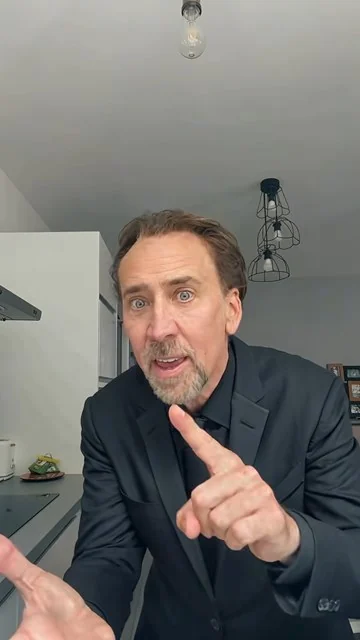
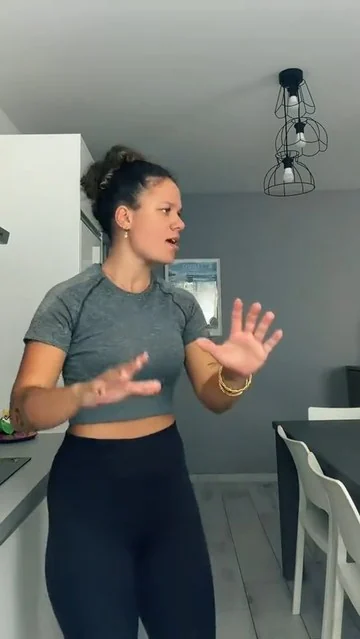
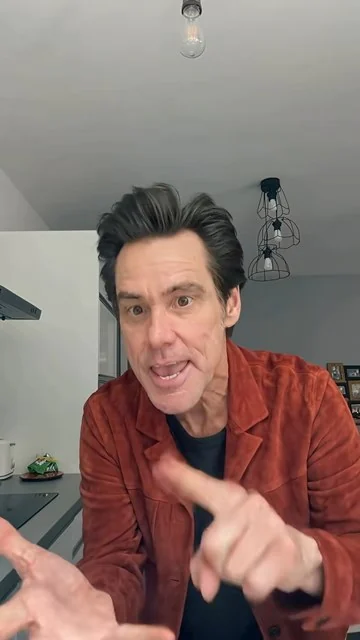
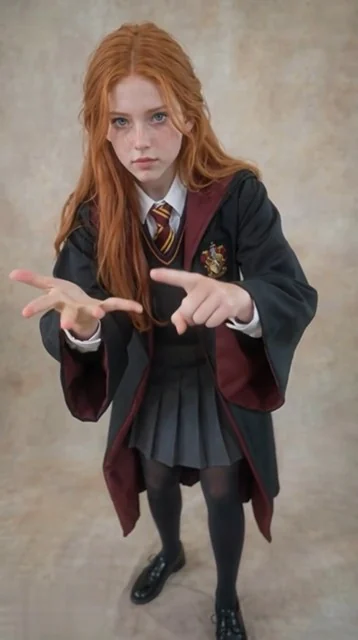
Explore four character performances, choose a movement and add your own character photo.
Both models copy the moves in a reference video onto your character. Open a model page for official sample clips, input limits and credit costs.
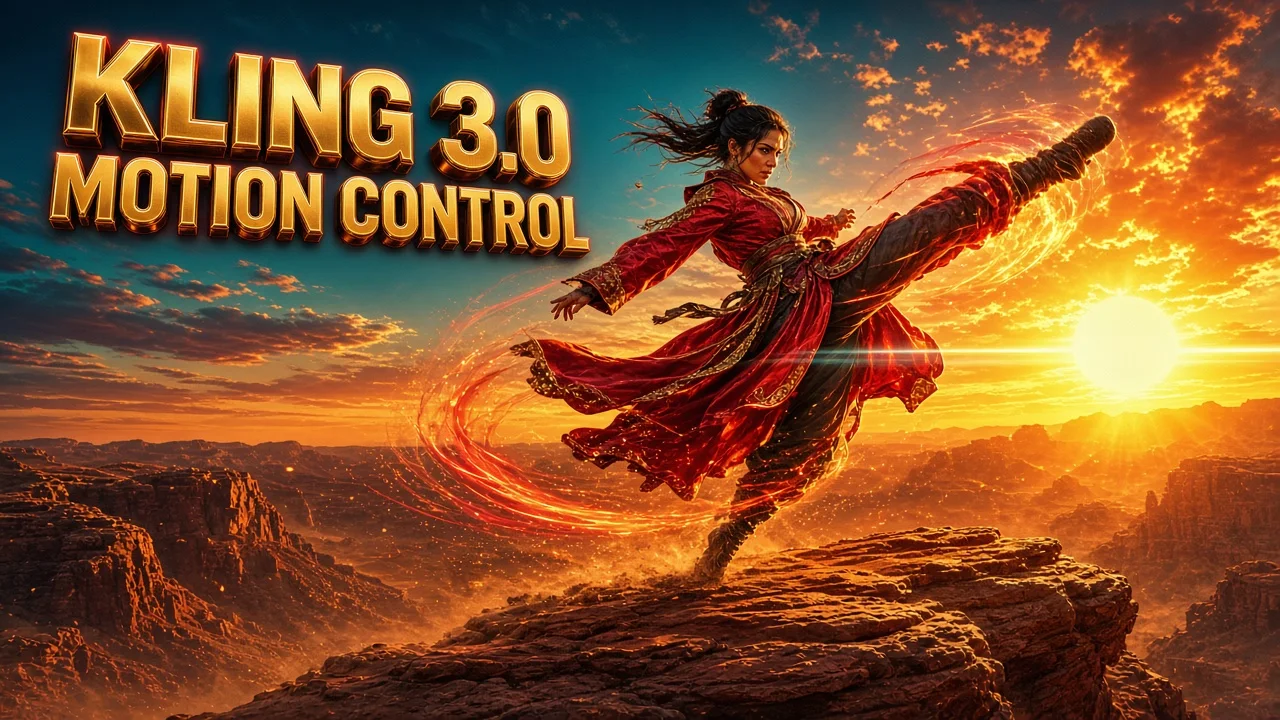 Kling 3.0 Motion ControlKling 3.0 Motion Control moves your character with a 3–30 s video and keeps one face through turns, emotions and fast moves. 720p or 1080p on AngryDance.View model
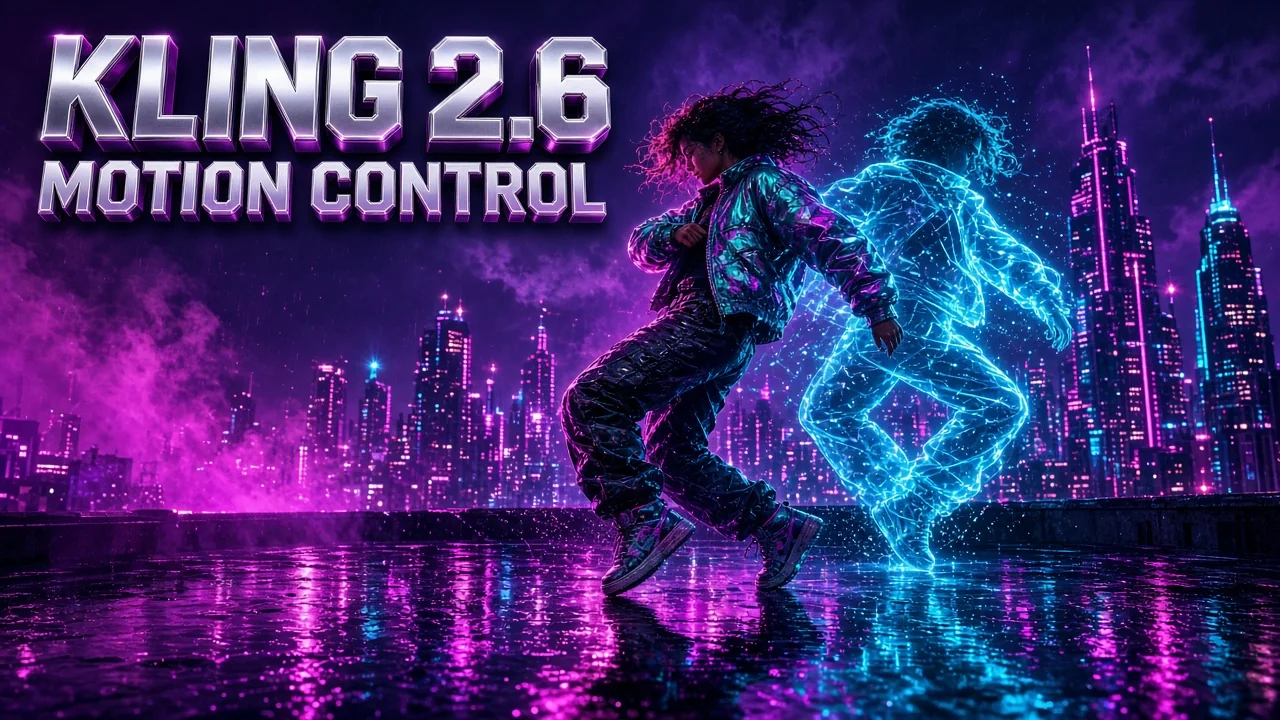 Kling 2.6 Motion ControlKling 2.6 Motion Control moves a character image with a 3–30 s video: full-body motion, hand gestures and expressions in 720p or 1080p on AngryDance.View model
To start in angrydance, prepare the character, choose the dance and check the quote before starting.
Start your angrydance preparation here: add a clear photo with the face and body visible. Leave space around the arms and feet so the character has room to perform.
In the angrydance composer, upload the dance reference video. Add an optional description, then choose 720p or 1080p and the character orientation.
Before angrydance generates the clip, check the inspected reference and displayed credits. Generate, follow the task status, then preview and download the completed video.
For your angrydance project, a visible person and a clear movement example make the creative direction easier to shape.
For an angrydance character, a familiar face, hairstyle and outfit give the new dance a clear visual identity. Start with the character you want viewers to notice.
For angrydance motion, a reference clip communicates gestures, footwork and timing directly. Choose the performance that best expresses your dance idea.
In your angrydance description, use optional text for the details that matter, such as expression or visual direction. The video already provides a movement reference.
When framing an angrydance performance, clear framing and space around the character help you plan visible arm movements and steps before you submit.
When choosing angrydance quality, compare 720p and 1080p alongside the displayed quote. Make a deliberate quality choice for each clip.
For your next angrydance version, preview the result, then change the photo, dance reference or optional description to explore a different performance.
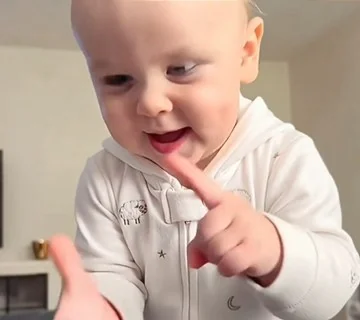
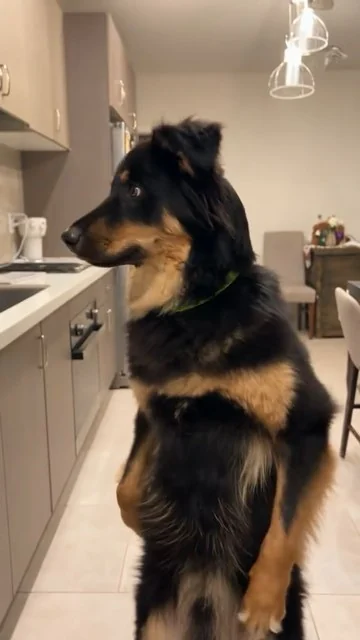
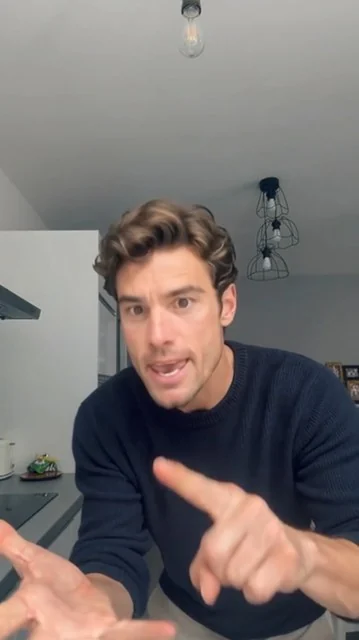
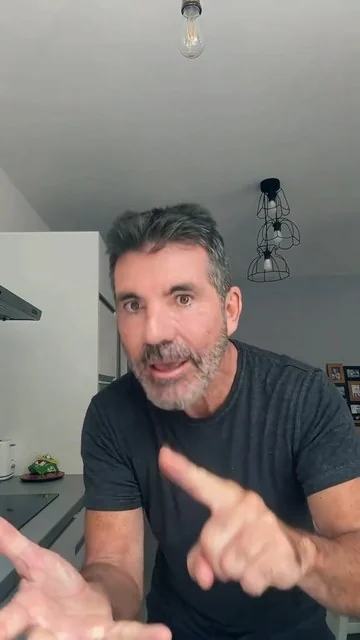
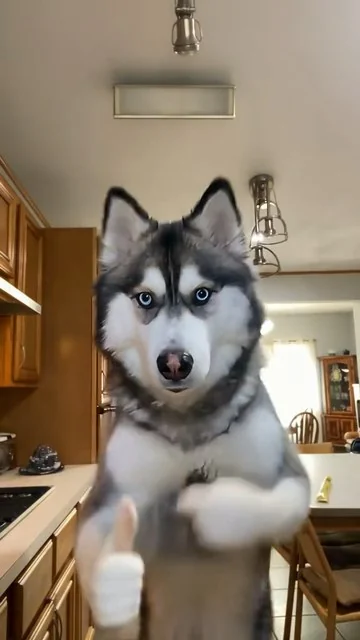
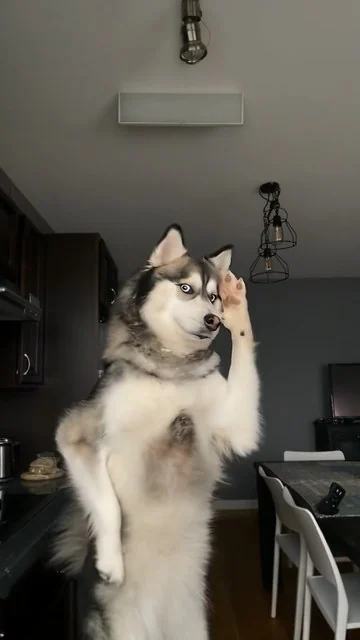
Explore expressive performances with people, babies, cats and dogs. Preview a motion, pair it with your character photo, or copy its description to develop your own version.
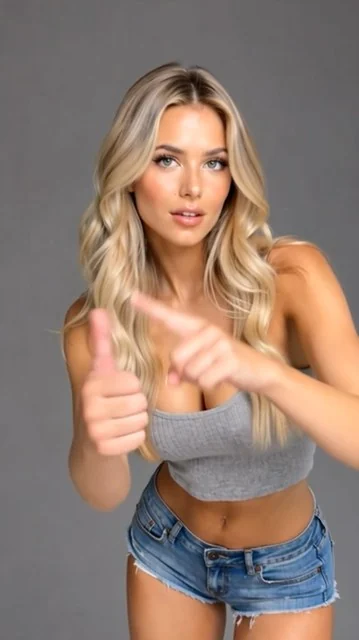
Make the photo character follow the reference video’s gestures, shoulder movement and rhythm. Preserve their appearance, outfit and original setting.
Make the photo character follow the reference video’s gestures, shoulder movement and rhythm. Preserve their appearance, outfit and original setting.
Make the photo character follow the reference video’s gestures, shoulder movement and rhythm. Preserve their appearance, outfit and original setting.
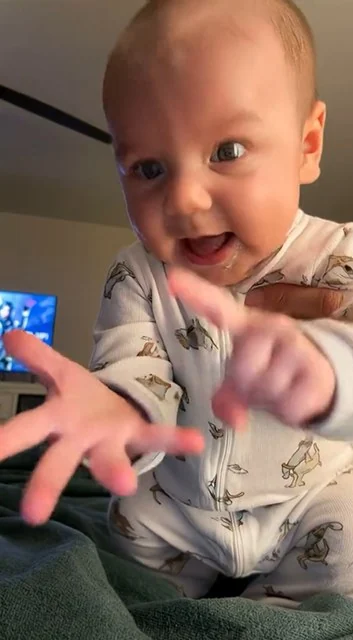
Make the baby character follow the reference video’s playful hand movements and body rhythm. Preserve their appearance, clothes and original setting.
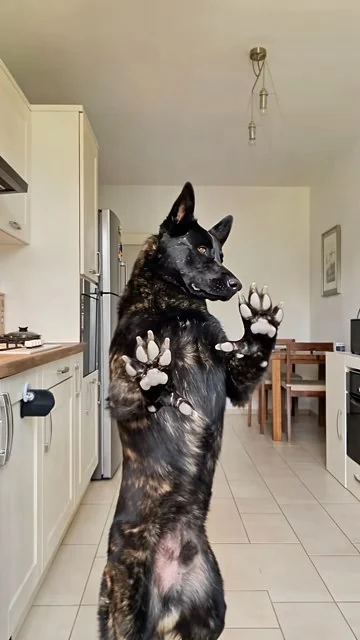
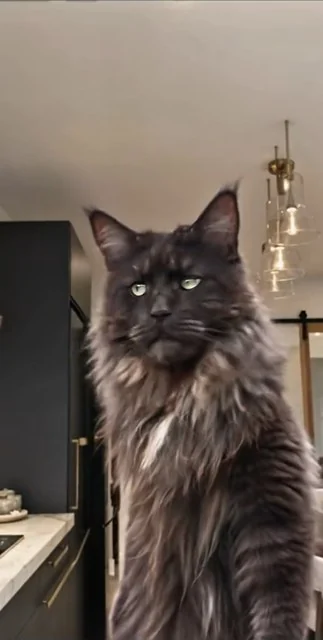
Compare paw movements, expressions and body rhythms to choose a reference for your next video.
Use the same workspace on your phone, tablet or desktop.
Start creatingAdd a character photo and a dance reference video. angrydance uses the photo to guide the person’s appearance and the video to guide movement. An optional description can add expression or visual direction.
For your angrydance character, choose a clear photo with the face and body visible and room around the arms and feet. Use JPG, JPEG or PNG up to 10MB. A readable full-body pose is useful for a dance with expressive gestures and footwork.
For an angrydance motion reference, use an MP4 or MOV reference up to 100MB, with clear movement and a duration of 3–30 seconds. With image-based character orientation, keep the video within 10 seconds. Choose a clip whose dance you want to reinterpret with your character.
In angrydance, no. The description is optional because the reference video supplies the movement. Add a concise note about the character’s expression or important visual details when it helps your idea.
In angrydance, choose 720p or 1080p. Video orientation follows the reference video’s character orientation and supports a reference up to 30 seconds; image orientation follows the photo and supports up to 10 seconds.
In the angrydance composer, add your references and settings, then review the quote shown for the inspected video and selected quality. Check your account balance before submitting. Use the pricing page to compare plans and credit packs.
For your completed angrydance clip, open the completed result in the workspace or My creations. Preview the movement, character and framing, then download the clip. Keep the take you like or adjust a reference for another version.