Kling 3.0 Motion Control
Create a dance video with Kling 3.0 Motion Control from a character photo and a dance reference video. The photo guides the character’s appearance; the video guides the movement. Choose character orientation and 720p or 1080p, add an optional description, then review the credit quote before generating.
Open the dance workspace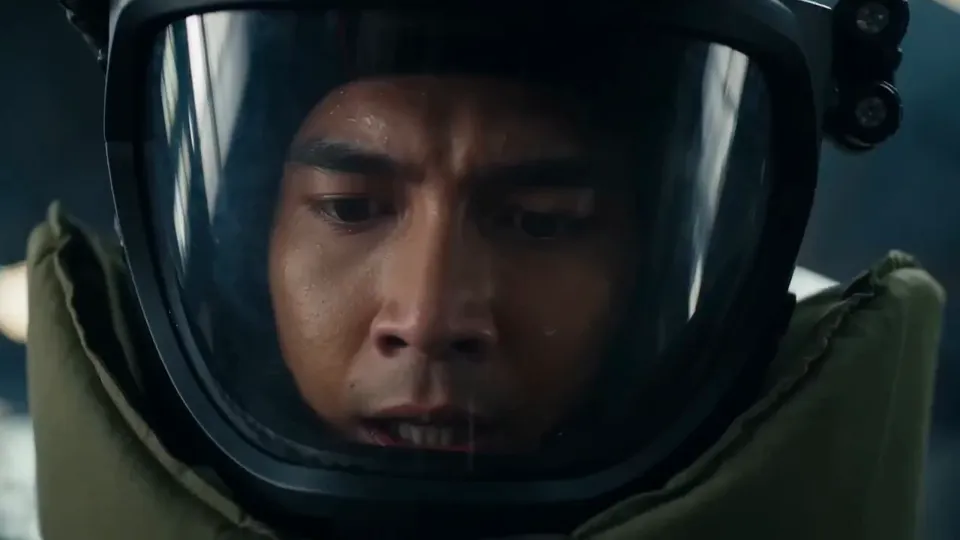
Kling 3.0 Motion Control · Supported workflows
What can you control with Kling 3.0 Motion Control?
Give appearance and movement their own references, then refine the supported settings around the dance you want to create.
How do the photo and video work together?
Upload one character photo and one dance reference video. The photo provides the character’s visual reference, while the video provides the movement reference, so you can choose who appears and which dance guides the result.
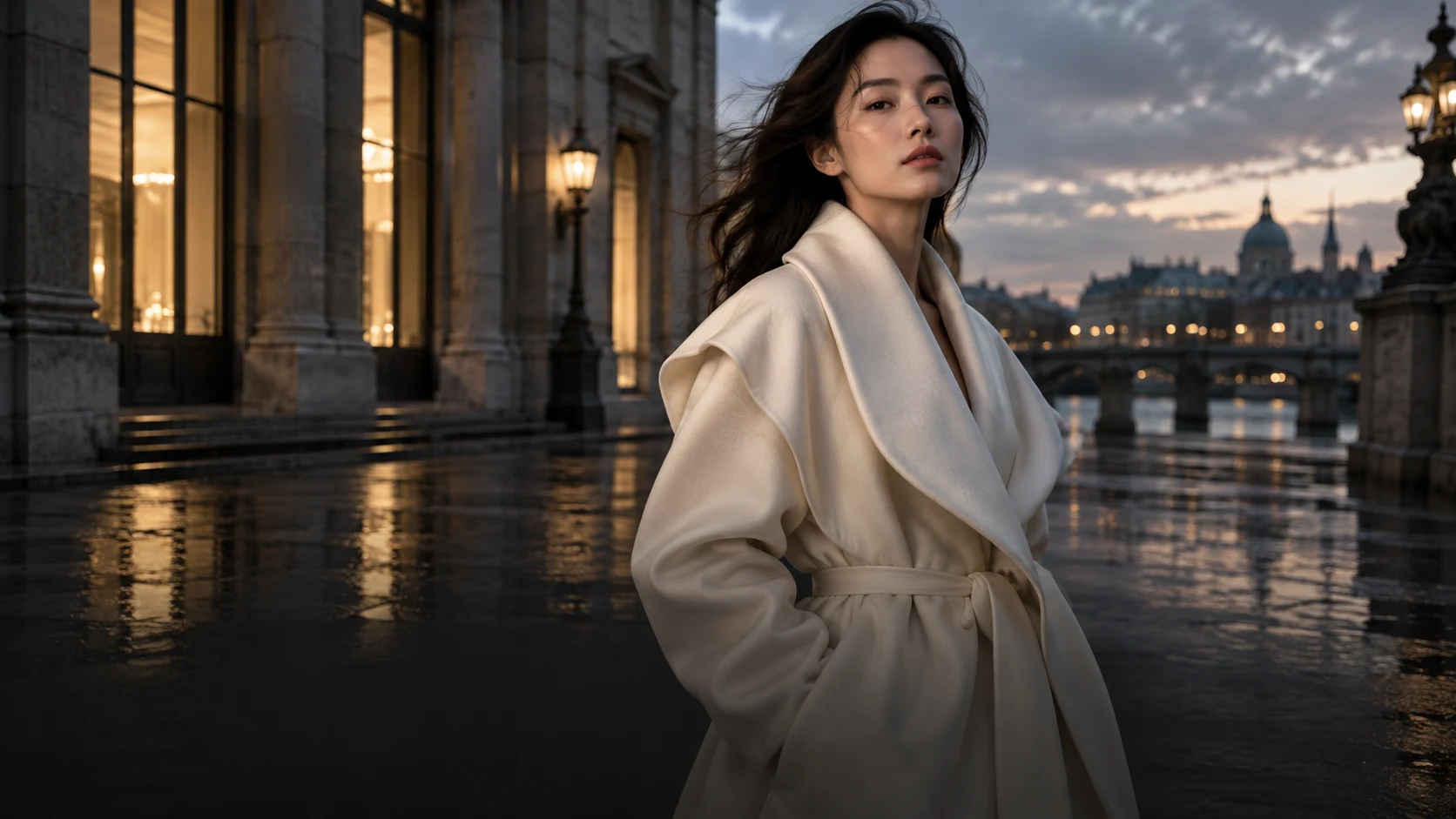
How do you define the character’s appearance?
Start with a clear photo that shows the character and the body areas important to the dance. Use it as the reference for appearance and clothing, and keep the subject easy to distinguish from the background.
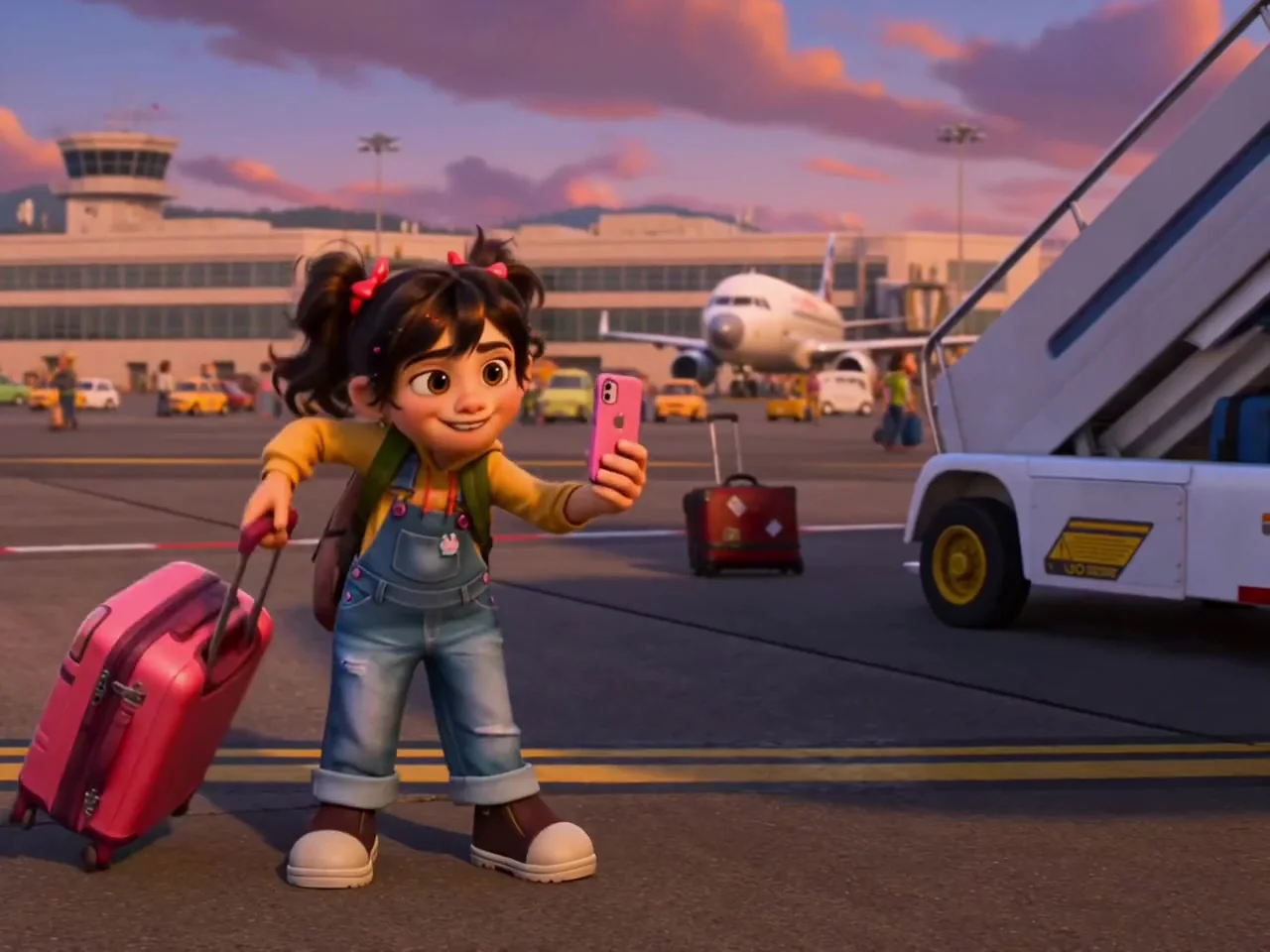
How do you guide the dance movement?
Choose a reference video with readable movement and a clearly visible dancer. Use the clip to guide the action and timing, then review the generated result to decide which movement details to refine next.
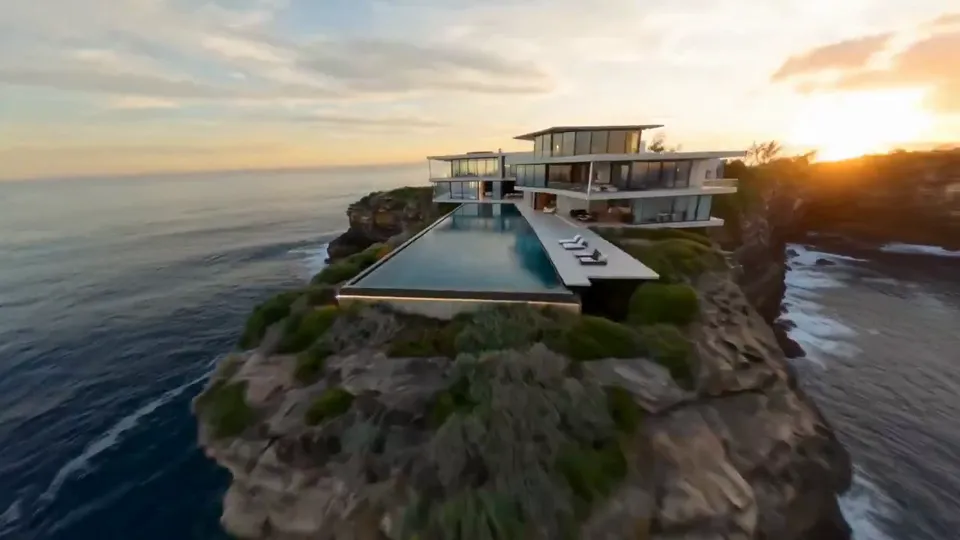
Should character orientation follow the image or video?
Choose image to take character orientation from the photo, or video to take it from the reference clip. Image orientation supports reference clips up to 10 seconds; video orientation supports up to 30 seconds. The video remains the movement reference in either mode.
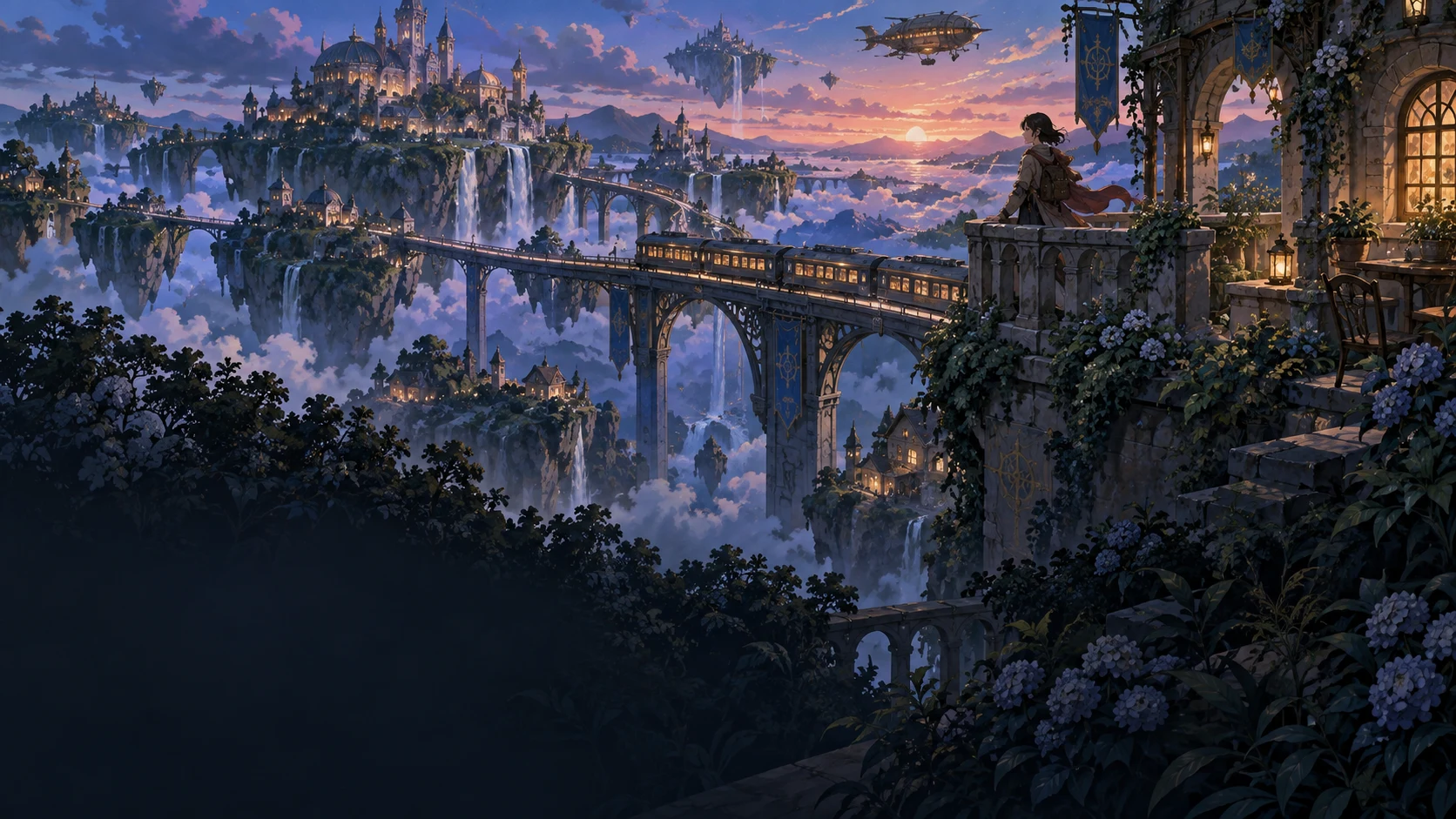
What can the optional description add?
Add a description of the scene, expression, or details you want to emphasize, using up to 2,500 characters. Keep the photo and dance video as the main references, and use the description to make your creative direction clearer.
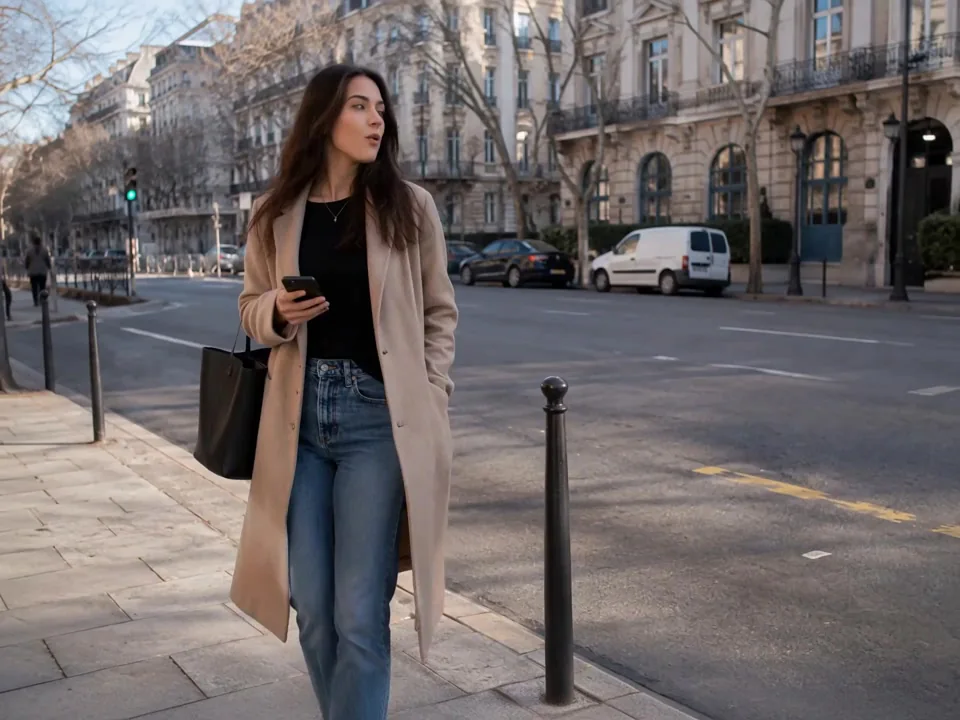
How do you choose quality and review the result?
Select 720p or 1080p and check the workspace’s credit quote before generating. When the task completes successfully, preview the video, download the result, or adjust your references and settings for another version.
Kling 3.0 Motion Control · Available settings
| Available settings | Motion control |
|---|---|
| Prompt length | 2500 |
| Character images | 1 |
| Motion videos | 1 |
| Output resolution | 720p / 1080p |
| Character orientation | From image / From video |
How do you make a dance video with Kling 3.0 Motion Control?
Prepare both inputs, choose how to orient the character, and check the quote before submitting your video.
- 01
Add your character photo
Upload one JPG, JPEG, or PNG image up to 10 MB. Use a clear view of your character; both image dimensions must exceed 340 px, with a width-to-height ratio between 0.4 and 2.5.
- 02
Add the dance reference video
Upload one MP4 or MOV clip up to 100 MB, lasting 3–30 seconds. Both video dimensions must exceed 340 px, with a width-to-height ratio between 0.4 and 2.5. For image orientation, keep the clip within 10 seconds.
- 03
Choose settings and check the quote
Choose image or video orientation and 720p or 1080p. Add an optional description of up to 2,500 characters, review the current credit quote, and submit when the inputs and settings are ready.
- 04
Preview, download, and refine
Follow the task’s status and preview a successfully completed video. Download the result, then keep or change the photo, dance reference, and description to explore another version.
What can you create with Kling 3.0 Motion Control?
Explore dance ideas around a chosen character, a movement reference, and a clear creative direction.
What would this character look like dancing?
Pair a clear character photo with a dance reference to explore a moving version of the character. Choose a clip that keeps the movement you care about visible.
Which dance suits the same character?
Keep the character photo and try different dance reference clips. Compare the resulting movement directions while using the same appearance reference.
How could a choreography idea look on screen?
Use a recorded movement reference to explore a dance concept with your chosen character. Preview the generated interpretation as a visual starting point for the next creative decision.
How can you plan a stage character’s movement?
Combine a character or costume photo with a dance clip to explore a performance concept. Refine the reference choice and optional description around the mood of the scene.
How can a creator develop a dance post?
Build a short dance video around a recognizable character and a chosen movement reference. Review the generated result and download the version that fits your content idea.
How can you compare different creative versions?
Keep the input pair and change one supported setting at a time, such as orientation or output quality. Check each quote before generating, then compare the completed videos.
Kling 3.0 Motion Control: inputs, settings, and credits
What is Kling 3.0 Motion Control, and what do I need to upload?+
Kling 3.0 Motion Control creates a motion-controlled video using one character photo and one reference video. The photo guides appearance, and the reference video guides movement. Both inputs are required; a text description is optional.
Which character photos does Kling 3.0 Motion Control accept?+
Upload one JPG, JPEG, or PNG photo up to 10 MB. Both dimensions must exceed 340 px, and the width-to-height ratio must be between 0.4 and 2.5. Choose a clear image with the character and the body areas relevant to the dance visible.
What are the dance reference video requirements?+
Use one MP4 or MOV video up to 100 MB, lasting 3–30 seconds. Both dimensions must exceed 340 px, and the width-to-height ratio must be between 0.4 and 2.5. Image orientation limits the reference to 10 seconds; video orientation allows up to 30 seconds.
What is the difference between image and video orientation?+
Image orientation takes the character’s orientation from the photo and supports reference clips up to 10 seconds. Video orientation takes it from the reference video and supports up to 30 seconds. The dance video provides the movement reference in both modes.
Does Kling 3.0 Motion Control support 720p, 1080p, and an optional prompt?+
You can select 720p or 1080p and add an optional description of up to 2,500 characters. Use the description for the scene, expression, or details you want to emphasize. It supplements the required photo and video references.
How do I check credits and download the dance video?+
Choose your inputs and settings, then review the current credit quote in the workspace before generating. After the task completes successfully, preview and download the video from the task. You can adjust the references or settings and check a new quote before creating another version.
Ready to turn your character photo into a dance video?
Create a dance video with Kling 3.0 Motion Control from a character photo and a dance reference video. The photo guides the character’s appearance; the video guides the movement. Choose character orientation and 720p or 1080p, add an optional description, then review the credit quote before generating.
Open the dance workspacePricing