Kling 2.6 Motion Control
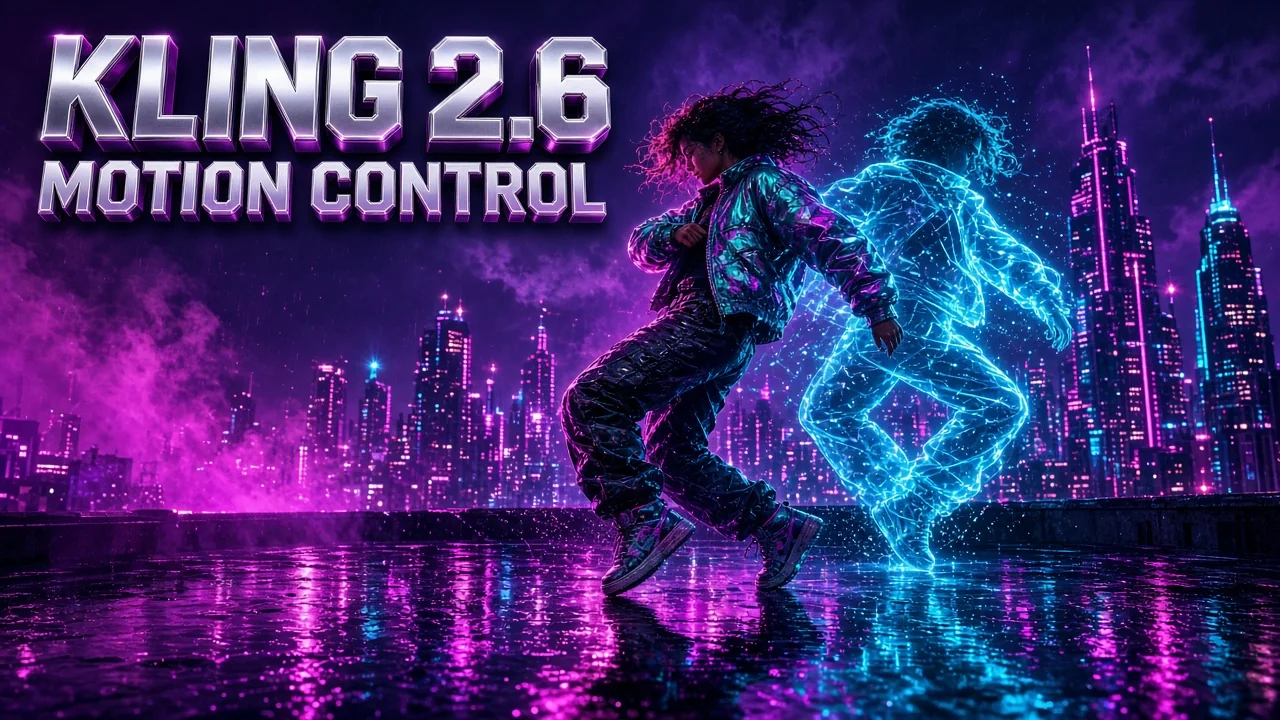
Kling 2.6 Motion Control applies the motion from one reference video to the character in one image. Full-body movement, facial expressions and hand gestures carry over with stable timing. Dance and martial arts stay clean. One image, one 3–30 second motion video, 720p or 1080p.
Create nowKling 2.6 Motion Control Core Features
Kling 2.6 Motion Control is performance-driven image to video. It takes a static character image and a 3–30 second movement video. The video sets the moves, the image sets the character, and an optional text description shapes the scene.
Full-Body Motion, Synced With Expressions
The whole performance carries over, not just the limbs. Kling 2.6 syncs full-body movement with facial expressions and lip movement from the reference video. Timing holds from the first beat to the last. Turns, reactions and small acting beats read as one natural performance.
- Body, face and lips move together
- Timing follows the reference beat by beat
- Works with real, illustrated and 3D characters
Complex Moves: Dance and Martial Arts
Kling 2.6 handles complex motion such as dance and martial arts. Spins, kicks and full routines transfer with clean, stable motion. Balance and rhythm hold through large movements. Leave space around the character in the image so big moves have room.
- Trending dances and full choreography
- Kicks, spins and martial arts forms
- Stable balance through fast, large moves
Precise Hands and Gestures
Detailed hand movements and gestures come through clearly. Finger poses, hand signs and small gestures are tracked frame by frame. Heart hands, pointing, a hand to the hair or crossed arms stay readable. Hand-led performances look as precise as the reference.
- Finger poses and hand signs
- Pointing, waving and heart hands
- Hands stay sharp in close and wide shots
One Continuous Take, Up to 30 Seconds
Upload a 3–30 second motion video and get one unbroken action sequence. Output length follows your reference. Image orientation supports motion videos up to 10 seconds. Use video orientation whenever your motion video is longer than 10 seconds.
- Up to 30 seconds in one take
- Image orientation up to 10 s, video up to 30 s
- 720p or 1080p output
Scene Details From Your Text Description
The video drives the motion. The text description shapes the scene. Describe lighting, background, outfits or new elements in up to 2,500 characters. Kling 2.6 adds them while the character keeps following the reference movement.
- Change the background or the lighting
- Add props, animals or outfit details
- Optional: leave it empty to keep the image's scene
How to Create With Kling 2.6 Motion Control
Three simple steps to turn one image into a full performance with Kling 2.6. Each request uses one image and one motion video, and the workspace checks both before you spend credits.
- 01
Upload a Character Image
Add one JPG or PNG, up to 10 MB, larger than 300 px, aspect ratio 2:5 to 5:2. The head, shoulders and torso must be clearly visible. Kling 2.6 Motion Control builds the character, background and other elements from this image. Match full-body or half-body framing to your motion video.
- 02
Add a Motion Video
Upload one MP4 or MOV, 3–30 seconds, up to 100 MB. The performer's head, shoulders and torso must be clearly visible. Choose a single continuous shot with one clear performer and a steady camera. The character's actions will follow this video.
- 03
Choose Settings and Generate
Pick 720p or 1080p. Choose image orientation to keep the pose direction of your picture (up to 10 s), or video orientation to follow the performer (up to 30 s). Add an optional scene description. Check the credit quote, then let Kling 2.6 Motion Control generate your clip and download it.
Kling 2.6 Motion Control vs Kling 3.0 Motion Control
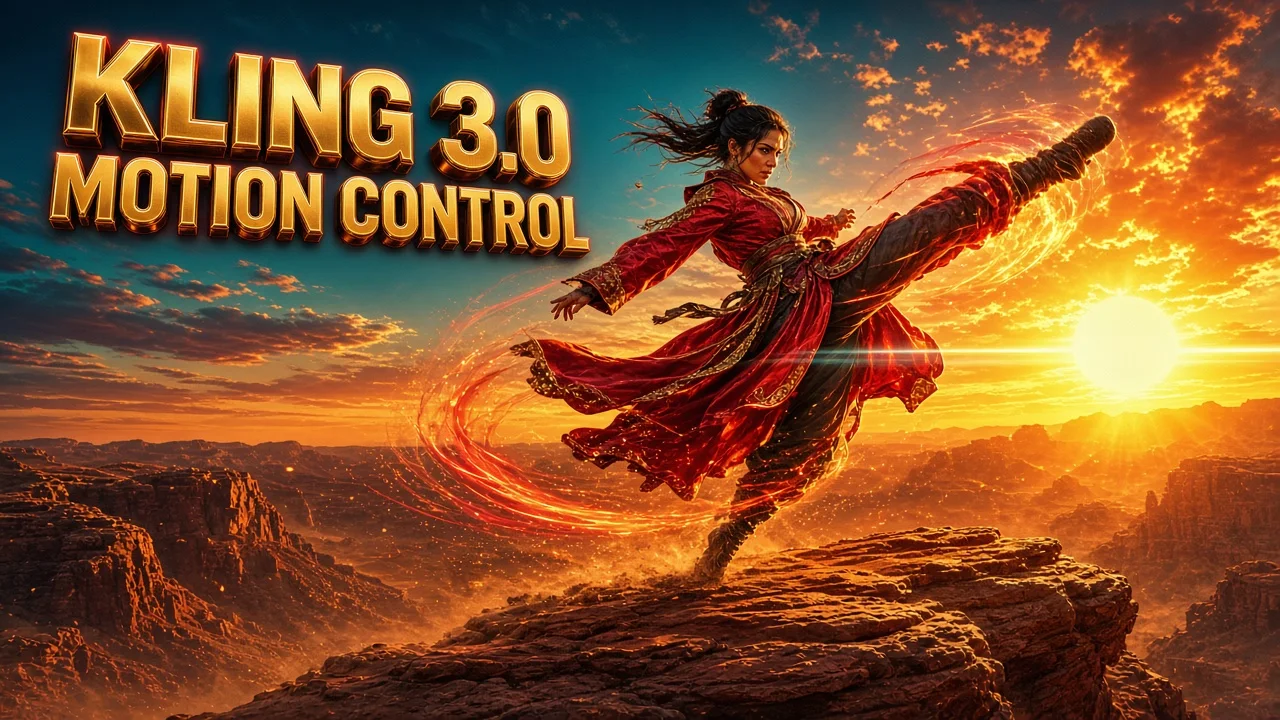
Same motion-transfer workflow, two strengths. Kling 2.6 Motion Control is the value pick for dance, gestures and full-body moves. Kling 3.0 adds stronger facial consistency for close-ups, emotions and moving cameras.
| Compare | Kling 2.6 Motion Control | Kling 3.0 Motion Control |
|---|---|---|
| Best for | Dance, gestures and full-body performances at a lower credit cost | Close-ups that need the strongest face consistency |
| Motion transfer | Full-body motion, expressions and hand gestures from one reference | The same workflow with improved facial consistency |
| Hands and gestures | Detailed finger poses and hand signs | Supported |
| Facial identity | Good for most dance and gesture clips | Stable across angles, occlusion and long sequences |
| Motion types | Dance, martial arts, hand gestures | Dance, martial arts, acting, reactions |
| Scene description | Optional, up to 2,500 characters | Optional, up to 2,500 characters |
| Character image | JPG / PNG, over 300 px, 2:5–5:2, up to 10 MB | Over 340 px, 2:5–5:2, up to 10 MB |
| Motion video | MP4 / MOV, 3–30 s, up to 100 MB | MP4 / MOV, 3–30 s, up to 100 MB, over 340 px |
| Character orientation | Image (up to 10 s) or video (up to 30 s) | Video by default, or image |
| Resolution | 720p or 1080p | 720p by default, or 1080p |
| Credits on AngryDance | 22 per second at 720p · 36 per second at 1080p | 40 per second at 720p · 54 per second at 1080p |
| 10-second clip | 220 credits at 720p · 360 at 1080p | 400 credits at 720p · 540 at 1080p |
Kling 2.6 Motion Control FAQ
Quick answers about Kling 2.6 Motion Control: files, orientation, length, credits and how it compares with Kling 3.0.
What is Kling 2.6 Motion Control?+
Kling 2.6 is a performance-driven image-to-video model. It applies the motion pattern of a reference video to the character in a static image. Real human motion, gestures and expressions carry over with stable timing and realism.
Does Kling have motion control?+
Yes. Kling motion control applies the movement in a reference video to the subject in a reference image. Kling 2.6 takes a static character image and a 3–30 second movement video and supports full-body motion with facial expressions, dance and martial arts, and detailed hand gestures.
What files do I need?+
You need one character image and one motion video. The image is JPG or PNG, up to 10 MB, larger than 300 px, with an aspect ratio from 2:5 to 5:2. The video is MP4 or MOV, 3–30 seconds, up to 100 MB. Both must clearly show the head, shoulders and torso.
What is the difference between image and video orientation?+
Image orientation keeps the direction your character faces in the image and supports motion videos up to 10 seconds; the character tends to face the camera and stay in place. Video orientation follows the performer in the reference and supports up to 30 seconds, so the body turns with the movement. Use video orientation whenever your clip is longer than 10 seconds.
How many credits does Kling 2.6 use?+
Kling 2.6 uses 22 credits per second at 720p and 36 credits per second at 1080p on AngryDance. Length follows your motion video, so a 10-second clip costs 220 credits at 720p or 360 at 1080p. The workspace shows the exact quote before you generate.
Can I try Kling 2.6 for free?+
Yes. New accounts can claim free credits and use them on Kling 2.6 right in the workspace. When they run out, you can top up credits or choose a plan on the pricing page.
How long can the video be?+
The output matches your motion video, from 3 to 30 seconds. Image orientation supports up to 10 seconds and video orientation up to 30 seconds. If the action is very fast or complex, the result can be shorter, because only continuous, usable motion is kept.
What does the scene description do?+
The motion comes from the video, and the optional description shapes the scene. Use up to 2,500 characters to change lighting, background or outfits, or to add new elements. Leave it empty to keep the look of your character image.
Should I use Kling 2.6 or Kling 3.0 Motion Control?+
Kling 3.0 Motion Control builds on 2.6 with improved facial consistency, emotions and stability across angles. Kling 2.6 uses fewer credits and is a strong pick for dance, gestures and full-body moves. Pick 3.0 when the face is the focus of the shot.
Can I use the videos commercially?+
Use a character image and motion video you own or are authorized to use, including permission for any real person's likeness. Review AI output before sharing or commercial use, because it may contain errors or unintended similarities. The Terms page has the full rules.
How do I get the best results?+
Match the framing: a full-body image with full-body motion, a half-body image with half-body motion. Use one performer, one continuous shot, no cuts and moderate speed. Leave room around the character for big moves, and keep the head, shoulders and torso visible in both files.